


Sie können auf Ihr FTP-Konto über den FileZilla FTP-Client oder jeden anderen FTP-Client zugreifen.
1. Öffnen Sie den FileZilla FTP-Client.
2. Geben Sie Ihren FTP-Host, Benutzernamen und Passwort ein. Sie können Ihre cPanel-Anmeldedaten als FTP-Benutzer und Passwort verwenden. Geben Sie Ihren Domainnamen wie ftp.example.com oder example.com in das Host-Feld ein.
3. Klicken Sie auf Schnellverbindung. Es dauert einige Sekunden, bis die Verbindung hergestellt ist. Anschließend werden Ihre Website-Dateien auf der rechten Seite angezeigt.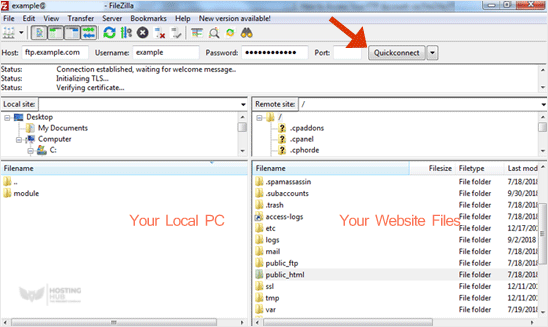
Sie können nun den FileZilla Client verwenden, Ihre Website verwalten und Dateien von Ihrer Website hochladen/löschen.
Most Popular Articles
How to Install Filezilla Client on Windows
Installing the FileZilla FTP Client on Windows OS is easy. Just follow this tutorial. 1....
How to Access or Connect to the FTP via FileZilla
You can access your FTP Account using the FileZilla FTP Client or any FTP Client. 1. Open the...
How to Create or Delete a Directory Using FileZilla
You can create or remove a directory on your website using the FileZilla FTP Client.1. Open the...
How to Upload the Index File to Your Website via FileZilla
You can follow this tutorial to upload the files to your hosting account. 1. Open FileZilla FTP...
How to Download Files and Directories to Your Computer via FileZilla
You can download files from your website to your computer using the FileZilla Client.1. Open...

