


Wir hoffen, dass Sie bereits unser Tutorial zu "So richten Sie ein cPanel E-Mail-Konto in Android ein" gelesen haben und bereits ein integriertes E-Mail-Widget zu Ihrem Android-Bildschirm hinzugefügt haben.
1. Drücken Sie auf Posteingang.

2. Ziehen Sie vom oberen Bildschirmrand nach unten, bis das kleine Aktualisierungsrad zu drehen beginnt. Es wird mit der Synchronisierung der E-Mails beginnen.
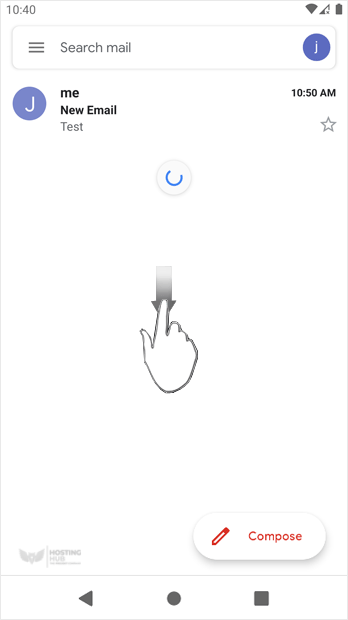
Im obigen Screenshot haben wir nach der Synchronisierung eine neue E-Mail erhalten.
Most Popular Articles
How to Read cPanel Emails in Android
Suppose you have already added your cPanel email accounts to your Android built-in email...
How to Delete cPanel Emails in Android
We hope you have already read our tutorial on How to Set Up a cPanel Email Account in Android,...
How to Fetch – Sync Emails in Android
We hope you have already read our tutorial on How to Set Up a cPanel Email Account in Android,...
How to Send an Email via Android
We hope you have already read our tutorial on How to Set Up a cPanel Email Account in Android,...
How to Set Up an Email Signature in Android
We hope you have already read our tutorial on How to Set Up a cPanel Email Account in Android,...

