


To create a new email account, perform the following steps:
1. Log in to your DirectAdmin Account.
2. In the E-mail Manager section, click on E-mail Accounts or type E-mail Accounts in the navigation filter box, and the option will appear. Click on it.
3. Click on Create Account. You will find it on the top right.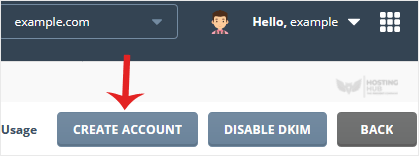
4. Enter an email username such as my-first-email and password. You can click on the Generate Random Password icon to generate one.
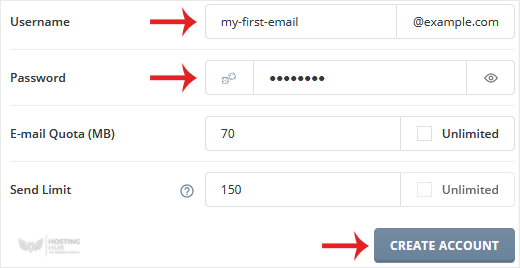
5. Change the email quota and Send Limit or leave them as they are. Then click on Create Account.
Please, copy the newly-created email account details to a safe place.

