


You can change your email account's password through the following steps:
1. Log in to your cPanel account.
2. In the Email section, click on Email Accounts. 
3. Scroll down to the Account @ domain section. You should see the email account listed there.
4. If your email address is server@example.com, you should see a Manage option on the right side of your email address. Click on Manage.

5. In the New Password field, enter your new password or use a password generator.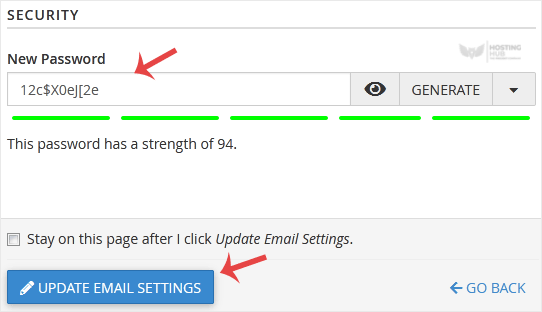
6. Scroll down to the end of the page and click on Update Email Settings.
Congratulations, your email password has been successfully changed. Now you can access your email using your new password!

