


1. Log in to your cPanel account.
2. In the Email section, click on Email Filters.
3. Under Filters by Users, you can see all your existing email accounts. Click on Manage Filters next to the appropriate one.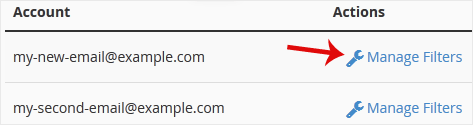
4. Under Current Filters, click on Edit next to the appropriate filter.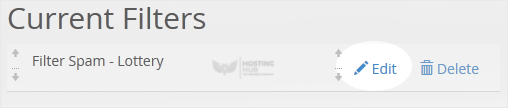
5. Make the desired changes to the filter.
6. Click on Save.
How to Edit "User Level Email Filter" in cPanel
Back to Knowledgebase
Was this article helpful?
Related Articles
How to Enable BoxTrapper in cPanel How to Edit an Account Level/Global Email Filter in cPanel How to Create a "User Level Email Filter" in cPanel How to Enable Apache SpamAssassin and SpamBox in cPanel How to Delete "User Level Email Filter" in cPanelStill need help?
Open a support ticket →
